Introduction to QuickBooks Desktop Enterprise
QuickBooks Desktop Enterprise (QBD Enterprise) is installed software — it lives on your computer or office server, not in a browser. It is the most powerful edition of QuickBooks Desktop and is widely used in legal, construction, non-profit, manufacturing, and larger consulting businesses across Canada. This lesson covers what QBD Enterprise is, how it differs from QBO and other QBD editions, and what to expect from this course.
What is QuickBooks Desktop Enterprise?
QuickBooks Desktop Enterprise is the top-tier edition of QuickBooks Desktop — an accounting application installed directly on a Windows PC or shared office server. Unlike QuickBooks Online, it does not require an internet connection to work. Your data is stored in a company file on your local drive or network, not in the cloud.
Enterprise supports up to 40 simultaneous users, includes advanced inventory management, enhanced reporting, industry-specific editions, and more granular user permissions than Pro or Premier. It is the preferred choice for larger businesses, law firms, non-profits, and companies with complex inventory or multi-user needs.
QBD vs QBO — key differences
If you have already completed the QBO course, you will notice both similarities and important differences. Understanding these helps you switch between clients without confusion.
QuickBooks Desktop
- Installed on Windows PC or server
- Works offline — no internet needed
- One-time purchase or annual subscription
- Data stored locally in a .QBW file
- Multi-user requires a network or server
- Stronger inventory and job costing tools
- More detailed reporting options
- Manual backups — your responsibility
- No automatic bank feeds (manual import)
QuickBooks Online
- Runs in any browser, any device
- Requires internet connection
- Monthly subscription — always current
- Data stored on Intuit's servers
- Multi-user built in — share by invite
- Strong bank feeds and automation
- Simpler interface, easier for beginners
- Automatic backups by Intuit
- Live bank feed connections
QBD versions available in Canada
Intuit sells QuickBooks Desktop in three editions. Each edition is designed for a different business size and need. Make sure you know which version your client is using before you start working in their file.
| Edition | Best for | Key features | Users |
|---|---|---|---|
| Pro | Small businesses, sole proprietors | Full accounting, A/P, A/R, banking, reports, basic inventory | Up to 3 |
| Premier | Industry-specific businesses | Everything in Pro + industry editions (contractor, non-profit, retail, manufacturing) | Up to 5 |
| Enterprise This course | Larger businesses with complex needs | Advanced inventory, payroll, advanced pricing, up to 40 users, dedicated support, enhanced reporting | Up to 40 |
Installing QBD — what you need
QBD is a Windows-only application. If you are on a Mac, you will need to run Windows via Boot Camp, Parallels, or a remote desktop connection to a Windows machine. There is no native Mac version of QuickBooks Desktop Canada.
| Requirement | Minimum | Recommended |
|---|---|---|
| Operating system | Windows 10 | Windows 10 or 11 (64-bit) |
| Processor | 2.4 GHz | 2.4 GHz or faster |
| RAM | 4 GB | 8 GB or more |
| Storage | 2.5 GB free space | SSD with 10+ GB free |
| Screen resolution | 1280 × 1024 | 1920 × 1080 or higher |
The QBD interface at a glance
When you open QBD for the first time, the interface looks very different from QBO. There is no left navigation sidebar — QBD uses a top menu bar and a Home screen with workflow icons. Here is what you will see:
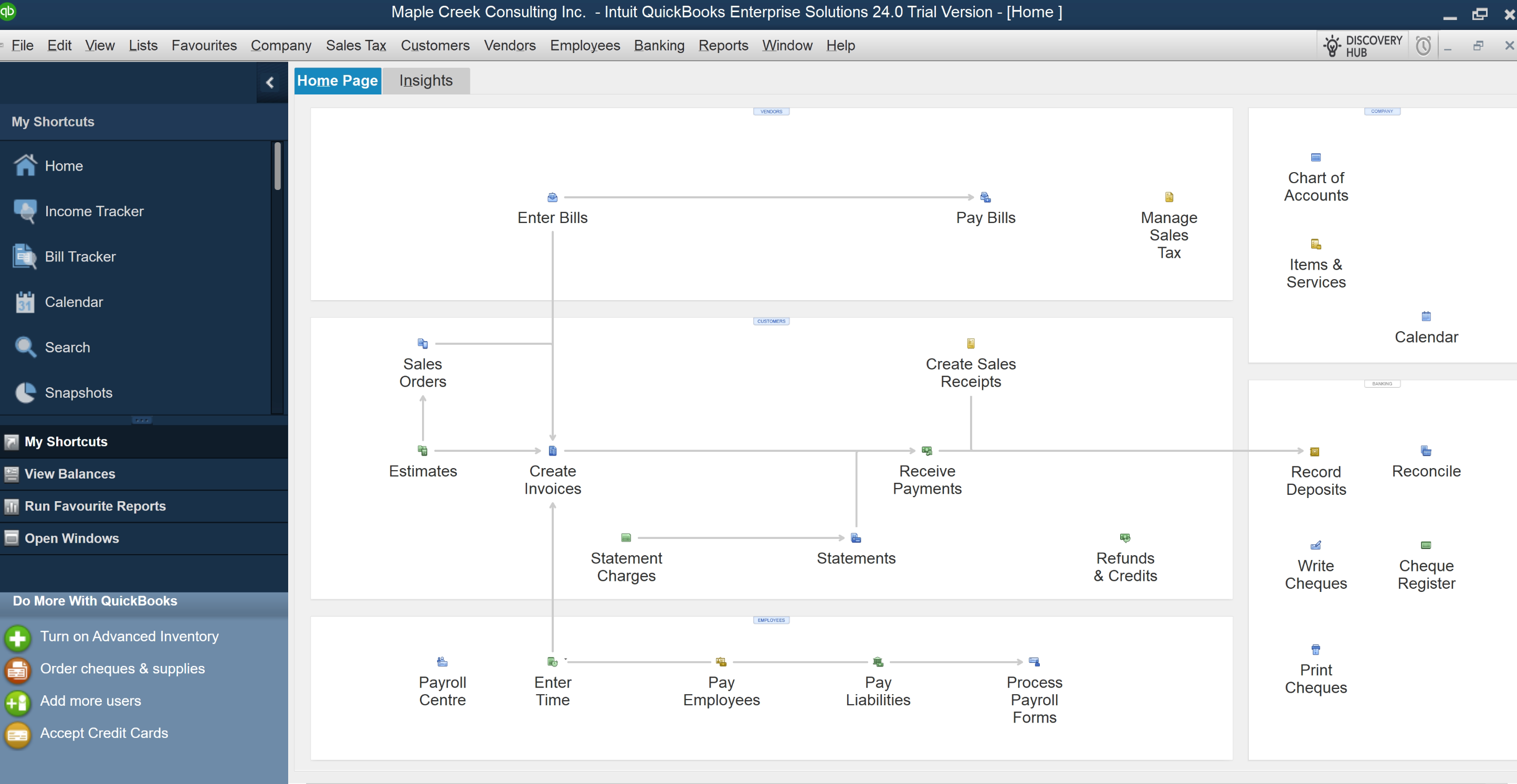
| Area | What it contains |
|---|---|
| Top menu bar | File, Edit, View, Lists, Favourites, Accountant, Company, Customers, Vendors, Employees, Banking, Reports, Window, Help |
| Icon bar (left) | Shortcuts to commonly used features — customizable |
| Home screen | Visual workflow diagram: Vendors → Bills → Pay Bills, Customers → Invoices → Receive Payments |
| Centres | Customer Centre, Vendor Centre, Employee Centre — show all records and transaction history |
| Company Snapshot | Dashboard showing income, expenses, and account balances at a glance |
What this course covers
This course walks through QuickBooks Desktop Enterprise — Canadian edition from setup to financial statements. Every lesson uses the same sample company throughout so you build on what you learn in each module.
| Module | Topic | Lessons |
|---|---|---|
| Module 1 | Setup & Settings | 4 |
| Module 2 | Expenses & Accounts Payable | 6 |
| Module 3 | Invoicing & Accounts Receivable | 6 |
| Module 4 | Banking & Reconciliation | 6 |
| Module 5 | GST/HST | 3 |
| Module 6 | Inventory | 3 |
| Module 7 | Financial Statements & Reports | 7 |
Key takeaways from this lesson
- QuickBooks Desktop is installed software — data is stored locally, not in the cloud. It works offline.
- QBD and QBO have the same underlying accounting logic — the main difference is the interface and where your data lives.
- Always use the Canadian edition of QBD — the US version does not have GST/HST, Canadian payroll tables, or CRA-compliant forms.
- QBD Enterprise is the most powerful edition — includes everything in Pro and Premier plus advanced inventory, enhanced reporting, and support for up to 40 users.
- QBD is Windows only. Mac users need Boot Camp, Parallels, or a Windows remote desktop to run it.
- The Home screen and top menu bar are the main navigation tools — there is no left sidebar like in QBO.
Quick check
Three questions before you finish this free lesson.
Question 1 of 3
A client runs a construction business and has been on QuickBooks Desktop for 8 years. They ask if they should switch to QuickBooks Online. What is the most important question to ask first?
Question 2 of 3
A new client sends you their QuickBooks Desktop company file. You notice it is the US edition. What is the key problem?
Question 3 of 3
Where do you find the main navigation in QuickBooks Desktop — to access Vendors, Customers, Banking, and Reports?
Ready to learn the full course?
35 more lessons covering the complete QBD Enterprise workflow — from creating your first company file to delivering year-end financial statements.